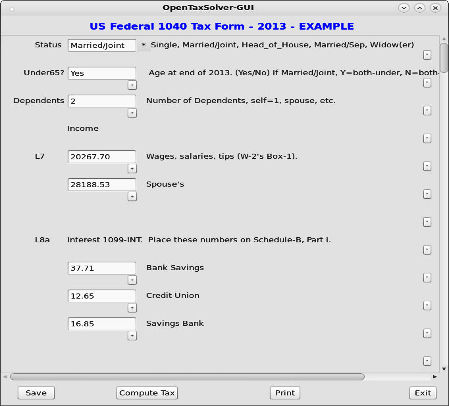
OTS GUIThe OTS GUI is an optional Graphical User Interface for all Open Tax Solver programs and tax-form versions. It provides a simple way to enter and edit your tax-data and to run the tax-solver on it. The OTS GUI is written to work with any OTS tax data file, both past, present, and future. The OTS GUI contains no specific tax-form data itself, but rather it reads your selected tax-form file and configures itself accordingly. By virtue of OTS-GUI, all OTS versions now automatically have a GUI front-end, and anyone, even without GUI-writing experience, may create new tax programs having this graphical front-end. The OTS_GUI is based on GIMP Tool Kit (Gtk). It compiles easily and runs properly on Linux, Mac OS, and Microsoft Windows. Gtk was chosen for its cross-platform support and modern look and feel. 
UsageStart the GUI by executing Run_taxsolve_GUI in the top OTS directory. Then select the tax form you wish to work on, and click the Start New Return button or the Open Saved Form button near the bottom of the opening screen. A file browser will then show the available files for the selected form. Select the file you want to open, and click OK. All tax-form files are .txt files. For example, US_1040_example.txt . Normally you will start by selecting the ..._template.txt file, for whichever form you selected. You will enter your numbers and save it to a name you choose, such as US_1040_robert.txt. On subsequent sessions, you will select and open your file name. (After you run OTS, you may see ..._out.txt files if you examine the data directory. These are the output files. They are not input form files, so you cannot to open them from the OTS GUI.)Once you open a form file, you will see text boxes with line instructions. Enter numbers in text boxes for each line of the tax form which applies to you. If you need a new box (to add another entry for a given line), press the small plus-sign (+) near the bottom-right of the box for the given line. To edit the comment on a line, click the (*) button at the end of the line. A dialog box will come up with an edit window to edit or add a comment. In the future, more functions may be added. To remove a previously added text-box, just erase the value in the text-box. After you save the file, then the next time you open it the extra empty text-box will be gone. For other changes, you may need to edit the tax-data file with a text editor and then re-read the file into the GUI. Save by clicking the Save button. You can choose to overwrite your original file, or give it a new name. To calculate your taxes, click Compute Taxes button at the bottom. The results will go to your text window and the output file.
|